



Native-level visual quality with high frame rates and low latency for a smooth experience.

Massive high-speed nodes | Stable and continuously available | One-click quick connection
We have over 10,000 nodes in 184 countries and regions, along with globally optimized high-speed routes

A global high-speed network built for streaming, with high-speed video channels that unlock global content and eliminate buffering.
Download Now →Esports-grade network optimization that eliminates high ping for a silky-smooth gaming experience.
Native-level visual quality with high frame rates and low latency for a smooth experience.
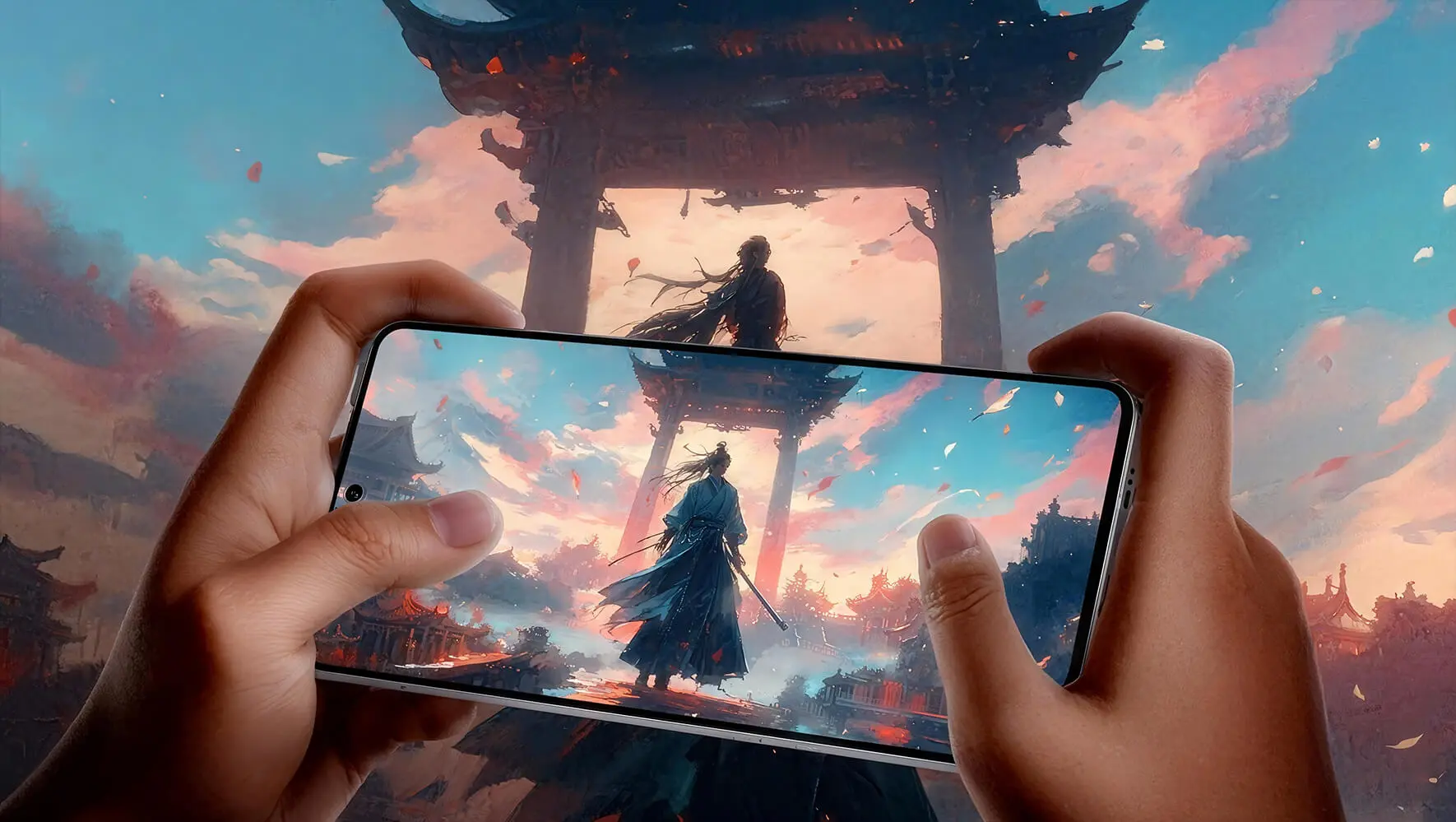
Balancing higher visual quality, higher frame rates, and a stable connection experience.
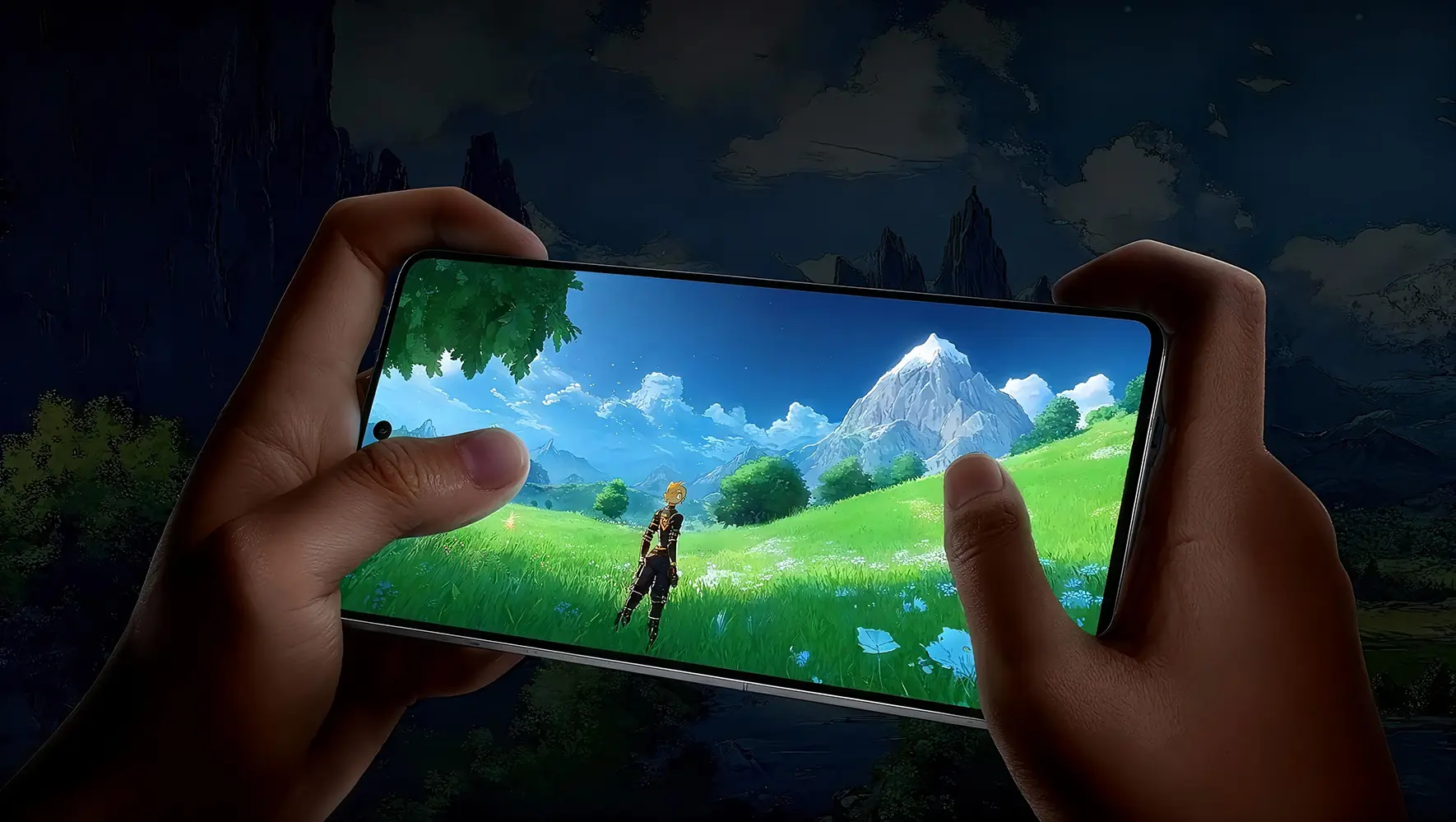
Consistently smooth, refined, and stable across different gaming platforms.
Smart connection, device switching, and privacy settings make common features clear at a glance.

Choose the most suitable connection method for the current environment to reduce repeated setup.

Covers common device platforms such as computers, phones, and tablets.

Protects everyday connection processes with clear security mechanisms.

Focuses on common steps so new users can get started quickly.

Provides a continuous, clear user experience across different network environments.
Get started quickly with smart route selection and one-tap connection; when you need to switch devices, simply choose the corresponding client.
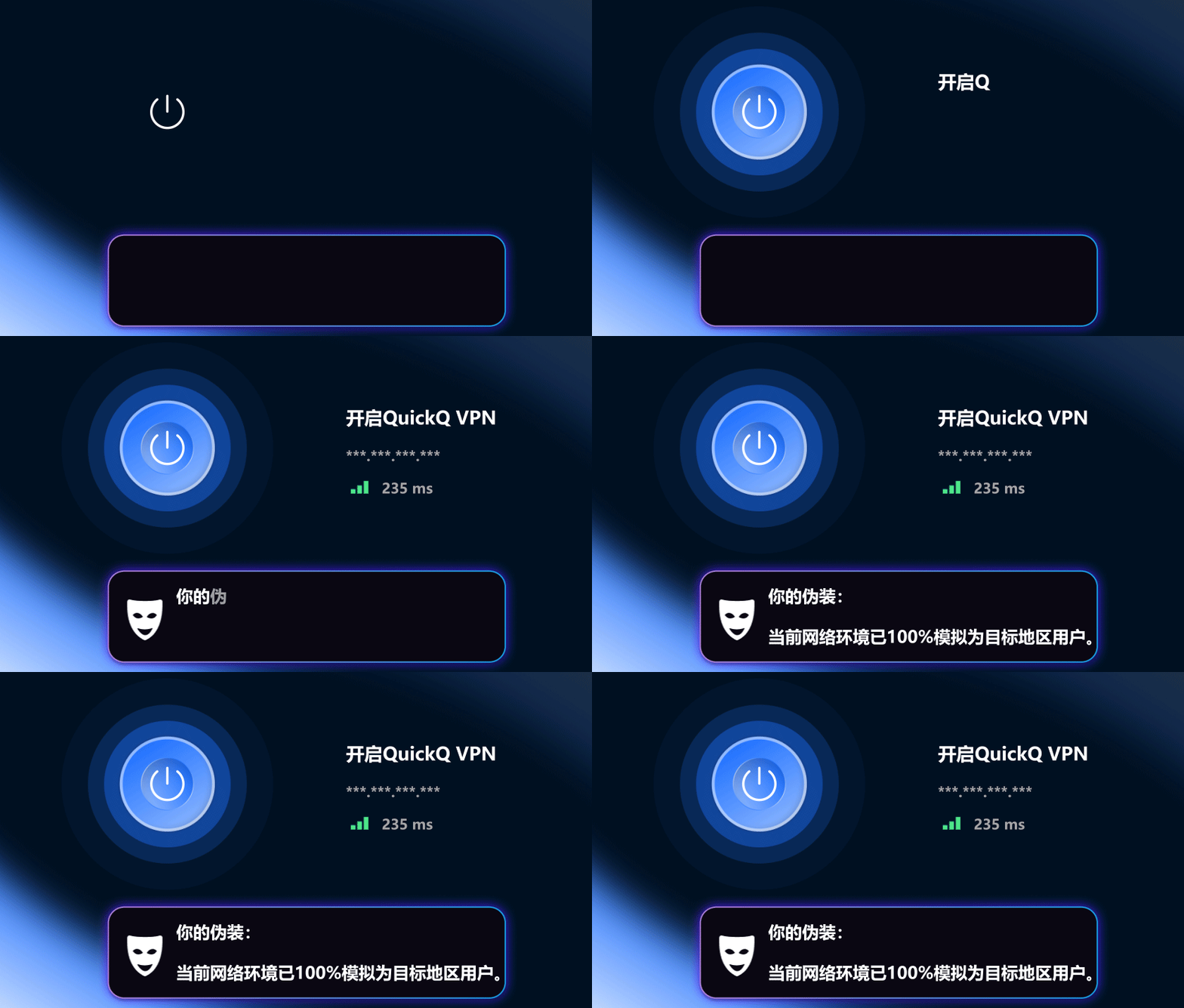
Use a familiar connection experience on computers, phones, and tablets by selecting the client that matches your device's system.
Common questions about device selection, downloading, installation, and getting started.
Supports common platforms such as Windows, Android, iOS, macOS, and Linux. Please choose the version that fits your device.
Open the downloaded installer and follow the wizard to complete the process; on mobile devices, install according to the system prompts.
Open the client, follow the in-app prompts to complete the initial setup, select a server, and you will be connected.
Go to the download center on this site and select the version that matches your current device system.
Go to the download center and choose the client and installation entry according to your device system.
Open Download CenterThe QuickQ VPN desktop client is designed around fast connection, allowing you to select servers, accelerate, and protect your privacy on common systems right after installation. The following content focuses on initial configuration, multi-device compatibility, and common connection issues to help you reach a stable experience more quickly.
Download the version for your system and complete the installation as prompted. When opening it for the first time, you need to log in to your account and grant basic network permissions.
Prioritize servers with lower latency. When accessing streaming media or content in specific regions, you can switch to a server in the corresponding area.
Desktop and mobile clients can be logged in separately. Manage online status by device count to avoid frequent switching that affects your connection.
First disconnect and reconnect the current node. If it still does not work, switch to another node or restart the client. Some office networks restrict encrypted connections, so it is recommended to try a different network environment.
After connecting to the node, open the target platform directly to test playback. If a regional restriction appears, switch to a backup node in the same region and clear your browser cache before trying again.

 Windows
 Android
 iPhone / iPad
 macOS
 Linux